FCFS Simulator - Raspberry Pi Pico W
For my Data Structures class (DATA 3000) we had an assignment where we had to implement a first come first serve algorithm and queues to schedule processes based on user input, and calculate related times.
I really enjoyed this assignment and it actually helped me to better understand FCFS for things like networking, so I wanted to take it another step further and build a physical device to simulate it visually.
For any of the files I share in this post check out this GitHub repo, Raspberry Pi Files and to see a visual demonstration of this project check out this video, FCFS Simulator Raspberry Pi Pico W.
First Come First Serve
Here is a quick explanation of first come first serve before jumping into building this project.
FCFS is a scheduling algorithm where processes are attended to in the order they arrive. When one process arrives, if there is no process ahead of it, it will be executed and the next process in-line must wait till that first one is complete.
Think of it like a line to checkout at a store. For example:
Person 1 enters the line at time 0 and it's going to take 3 seconds for them to finish checking out
Person 2 enters the line at time 2 and it's going to take 2 seconds for them to finish checking out

Person 1 checks out from time 0-3, and Person 2 enters the line at time 2, meaning they have to wait 1 second
Once Person 1 finishes, Person 2 can begin checking out from time 3-5
Setup
I started designing my idea for this project back in March not long after finishing the initial assignment that inspired it.
The assignment itself was very helpful for demonstrating, however, I wanted a visual aspect and remembered the 10 segment LED bar graph display that I have.
This project did not seem very complex but it was the most wiring I had done for anything, using two components that I hadn’t really used before, and required that I properly understood FCFS scheduling.
For this post I wanted to break down the setup for each part separately before discussing any of the code, to hopefully make it easier to understand.
Physical Parts
What you need:
- 1x LCD Display
- 1x Rotary Encoder
- 1x 10 Segment LED Bar Graph Display
- 1x 1K ohm resistor
- 10x 220 ohm resistors (this changes based on the LED colour)
- 30x wires (roughly)
LCD Display - This component has 16 pins, not all of them are needed but a lot of them are and it can get quite complex.
Note, I specifically used a HD44780 LCD without an I2C module, but I would recommend getting one with it for easier use. Instead of 10+ pins, it only requires 4, making it a lot easier to set up and debug.
Below is what I set up and found worked best for me.
| Component Pin | Plugged |
|---|---|
| VSS | GND |
| VDD | 5V (for the Pico, VBUS) |
| VO | GND (1K ohm resistor) |
| RS | GPIO21 |
| RW | GND |
| E | GPIO20 |
| D0-3 | nothing |
| D4-7 | GPIO16-19 |
| A | 5V (VBUS) |
| K | GND |
Initially I used an Arduino tutorial for setting up the display, however a few things I figured out later included:
- Adding a 1k ohm resistor from VO of the LCD to GND
- Adding cable from K to GND and another from A to VBUS
All of that is included above, but I wanted to highlight those changes since they helped make a more clear and stable display.
Rotary Encoder - Quite a simple part, it rotates freely compared to a potentiometer and it has a button.
| Component Pin | Plugged |
|---|---|
| GND | GND |
| + | 5V (VBUS) or 3.3V |
| SW | GPIO13 |
| DT | GPIO14 |
| CLK | GPIO15 |
10 Segment LED Bar Graph Display - For this part, there are 10 sets of pins like if you had 10 separate LEDs.
One side is connected to a GPIO and the other is grounded with a 220 ohm resistor. For my setup I did GPIO pins 2-11.
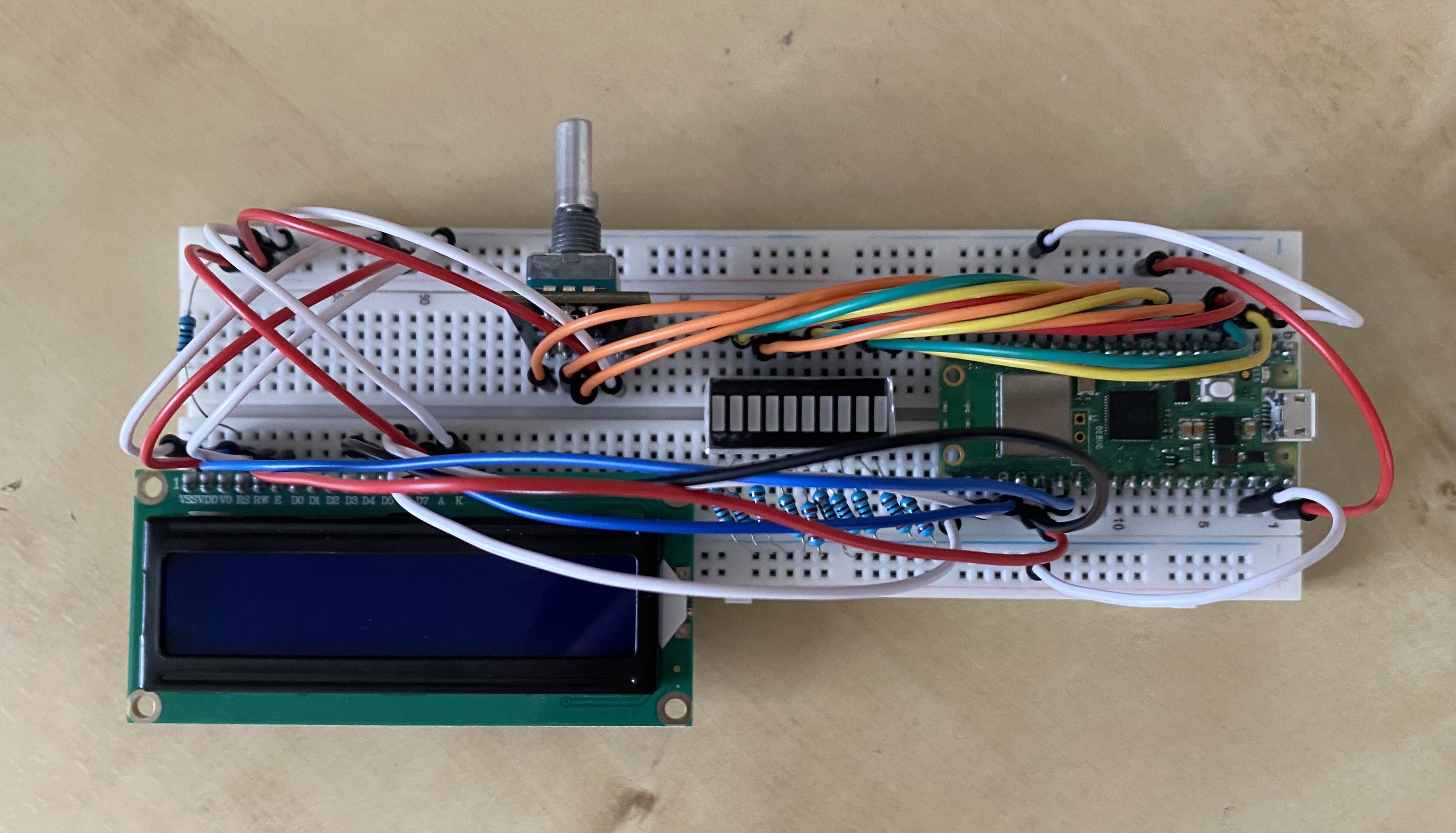
Below is a photo of everything set up together, it is pretty crowded but I did my best with what I had available to me.
Code Walkthrough
The idea for the project was that everything was controlled via the rotary encoder, output to the LCD, and a visual simulation of the queue is demonstrated on the 10 segment LED bar graph display. Meaning the terminal wasn’t needed for anything.
The code itself is split into four different files, the main script, and one script for each physical component to handle their required functions.
Main Script
This script handles the bulk of the program:
- Calling the functions of the physical components
- Gathering user input
- Calculating the total and average waiting and turnaround times
# FCFS (First Come First Serve) Simulator
from FCFS_Sim.LCD_display import lcd_init, lcd_line1, lcd_line2, lcd_clear, lcd_write_line
from FCFS_Sim.Rot_Enc import rotation, button
from FCFS_Sim.LED_bar import bar_clear, show_queue
import time
import sys

def grab_value():  # function used for getting input from the rotary encoder
    value = 0
    last_value = -1

    while True:
        delta = rotation()  # call the rotation function in the rot_enc script

        if delta != 0:
            value += delta  # change value based on the rotation

            if value < 0:   # value must stay 0 or above
                value = 0
            if value > 10:  # value must stay 10 or below
                value = 10

        if value != last_value:  # change the value output to the LCD display
            lcd_write_line(lcd_line2, "       {:02d}       ".format(value))
            last_value = value

        if button():  # when the button is pressed
            break     # break the while loop

        time.sleep(0.01)

    return value  # return the value

def run_process(burst):
    for i in range(burst):
        set_led(i)
        time.sleep(1)
    bar_clear()

lcd_init()  # initialize the LCD before running

current_time = 0  # set the current time to 0 - this tracks the time once running
queue = []        # create and empty list for the queue
running = None    # set the current running process to none
exec_prog = 0     # time for the execution progression

bar_clear()  # clear the bar graph display of any lights

lcd_clear()  # clear the LCD display of any output
time.sleep(0.002)

lcd_write_line(lcd_line1, " FCFS Simulator")  # print to line one the title text
time.sleep(0.05)
lcd_write_line(lcd_line2, "  Click to Run")   # print to line two how to progress

while not button():  # wait for the button
    time.sleep(0.01)

lcd_clear()  # clear the LCD display
time.sleep(0.02)
lcd_write_line(lcd_line1, "Process Amount:") # ask user for process amount

lcd_write_line(lcd_line2, "       00 ") # print the initial zero of the counter
numProcesses = grab_value()  # call grab_value to store the amount of processes

if numProcesses < 2:  # if not enough processes
    lcd_clear()  # clear the LCD display
    time.sleep(0.02)

    # print a goodbye message and why before exiting
    lcd_write_line(lcd_line1, "Not enough")
    lcd_write_line(lcd_line2, "processes, bye!")

    time.sleep(1)
    lcd_clear()
    sys.exit()

processes = []  # create a list of dictionaries for the processes
for proc in range(numProcesses):  # loop through based on the amount decided by the user
    lcd_clear()  # clear the LCD display
    time.sleep(0.02)
    lcd_write_line(lcd_line1, f"PID {proc + 1:02d} Arrival:") # ask user for arrival time

    lcd_write_line(lcd_line2, "       00 ") # print the initial zero of the counter
    aTime = grab_value()  # call grab_value and store input

    lcd_clear()  # clear the LCD display
    time.sleep(0.02)
    lcd_write_line(lcd_line1, f" PID {proc + 1:02d} Burst:") # ask user for burst time

    lcd_write_line(lcd_line2, "       00 ") # print the initial zero of the counter
    bTime = grab_value()  # call grab_value and store input

    # append new process along with necessary values
    processes.append({
        "pid": proc + 1,
        "arrival": aTime,
        "burst": bTime,
        "comp": 0
    })

# sort processes based on arrival times and then process ID
processes.sort(key=lambda p: (p["arrival"],  p["pid"]))

lcd_clear()  # clear the LCD display
time.sleep(0.02)

while True:
    for p in processes:  # loop through processes
        if p["arrival"] == current_time:  # check if any arrived
            queue.insert(0, p["pid"])  # insert them into the queue
            lcd_write_line(lcd_line2, f"PID {p['pid']} arrived")  # print that a process arrives
            show_queue(queue)  # update visual queue

    if running is None and queue: # if no process is running and there is a queue
        running = queue[-1]  # update what is running
        exec_prog = 0  # reset the execution progress

    if running is not None:  # if a process is running
        proc = None  # set proc to none
        for p in processes:  # loop through processes
            if p["pid"] == running:  # find what is running
                proc = p  # set proc to the running process
                break  #break for loop
        exec_prog += 1  # update the execution progress

        lcd_write_line(lcd_line1, f"T:{current_time:02d}")  # update the current time output

        if exec_prog >= proc["burst"]:  # compare the execution progression with the process burst time
            lcd_write_line(lcd_line2, f"PID {proc['pid']} done")  # print the process is done
            proc["comp"] = current_time + 1  # update the completion time of the process

            queue.pop()  # pop the process from the queue
            running = None  # set running to none
            exec_prog = 0  # reset the execution progression
    else:
        lcd_write_line(lcd_line2, "Idle")  # print idle if nothing is running and nothing in the queue

    done = True  # set done to true
    for p in processes:  # loop through the processes
        if p["arrival"] > current_time or queue or running:
            done = False  # if anything has a time greater than the current time, set done to false

    if done:  # if done stays true
        break  # break the while loop

    show_queue(queue)  # update the visual queue
    current_time += 1  # update the current time
    time.sleep(1)  # wait one second

total_waiting = 0  # set total waiting time to zero
total_turnaround = 0  # set total turnaround time to zero

for p in processes:  # loop through processes
    turnaround = p['comp'] - p['arrival']  # calculate turnaround
    waiting = turnaround - p['burst']  # calculate waiting

    total_waiting += waiting  # add to the total
    total_turnaround += turnaround  # add to the total

avg_waiting = total_waiting / len(processes)  # calculate the average
avg_turnaround = total_turnaround / len(processes)  # calculate the average

lcd_clear()  # clear the LCD display
time.sleep(0.02)

# output the averages of waiting and turnaround
lcd_write_line(lcd_line1, f"Waiting: {avg_waiting}")
lcd_write_line(lcd_line2, f"Turnaround: {avg_turnaround}")

time.sleep(5)

# clear both the bar graph and lcd display
lcd_clear()
bar_clear()
LCD Display
This script is a compilation of all the functions required for the LCD display; including an extra helper function for writing the output.
The specific functions that I require in the main script are imported via the line from FCFS_Sim.LCD_display import lcd_init, lcd_line1, lcd_line2, lcd_clear, lcd_write_line.
from machine import Pin
from time import sleep

# pin mapping
rs = Pin(21, Pin.OUT)
e  = Pin(20, Pin.OUT)
d4 = Pin(19, Pin.OUT)
d5 = Pin(18, Pin.OUT)
d6 = Pin(17, Pin.OUT)
d7 = Pin(16, Pin.OUT)

data_pins = [d4, d5, d6, d7]

def pulse_enable():
    e.value(0)
    sleep(0.001)
    e.value(1)
    sleep(0.001)
    e.value(0)
    sleep(0.001)

def send_nibble(nibble):
    for i in range(4):
        data_pins[i].value((nibble >> i) & 1)
    pulse_enable()

def send_byte(value, mode):
    rs.value(mode)  # 0 = command, 1 = data
    send_nibble(value >> 4)
    send_nibble(value & 0x0F)
    sleep(0.002)

def lcd_command(cmd):
    send_byte(cmd, 0)

def lcd_data(data):
    send_byte(data, 1)

def lcd_init():
    sleep(0.05)

    # Initialize in 4-bit mode
    send_nibble(0x03)
    sleep(0.005)
    send_nibble(0x03)
    sleep(0.001)
    send_nibble(0x03)
    send_nibble(0x02)

    lcd_command(0x28)  # 4-bit, 2 lines
    lcd_command(0x0C)  # Display ON, cursor OFF
    lcd_command(0x06)  # Entry mode
    lcd_command(0x01)  # Clear display
    sleep(0.005)

def lcd_print(text):
    for char in text:
        lcd_data(ord(char))

def lcd_line1():
    lcd_command(0x80) # cursor first line

def lcd_line2():
    lcd_command(0xC0) # cursor second line

def lcd_clear():
    lcd_command(0x01)

# helper function to make writing on the LCD easier
def lcd_write_line(line_func, text):
    text = text[:16]
    while len(text) < 16:
        text += " "
    line_func()
    lcd_print(text)
Rotary Encoder
This script handles the two functions of the rotary encoder: rotation and the button. It’s much more simple compared to the LCD and is imported in the main via from FCFS_Sim.Rot_Enc import rotation, button.
from machine import Pin
import time

clk = Pin(15, Pin.IN, Pin.PULL_UP)
dt  = Pin(14, Pin.IN, Pin.PULL_UP)
sw  = Pin(13, Pin.IN, Pin.PULL_UP)

last_clk = clk.value()

def rotation():
    global last_clk

    current = clk.value()
    delta = 0

    if last_clk == 1 and current == 0:
        if dt.value() == 1:
            delta = 1     # clockwise
        else:
            delta = -1    # counterclockwise

    last_clk = current
    return delta

def button():
    if sw.value() == 0:  # pressed
        time.sleep(0.3)  # debounce
        return(True)
    return(False)
Originally I was going to use a potentiometer, but remembering the built-in button on the rotary encoder made a lot more sense for this project.
LED Bar Graph
This was the one physical component that I had more experience with and the easiest of them all to configure. Imported into main via from FCFS_Sim.LED_bar import bar_clear, show_queue.
from machine import Pin

# GPIO pins for each LED - listed backwards to go left to right
led_pins = [11, 10, 9, 8, 7, 6, 5, 4, 3, 2]

# initialize LEDs
leds = [Pin(pin, Pin.OUT) for pin in led_pins]

def bar_clear():
    for led in leds:
        led.value(0)

def show_queue(queue):
    bar_clear()
    # queue = queue[:len(leds)]
    start = len(leds) - len(queue)
    for i in range(len(queue)):
        leds[start + i].value(1)
As stated in the comments, the LEDs are listed backwards to change the direction that they move in for the visual demonstration, starting on the right and queuing to the left.
Imagine it like the following:
LED/Queue: [][][][][]

When P1 arrives: [][][][][P1]
When P2 arrives: [][][][P2][P1]
Then P3: [][][P3][P2][P1]

When P1 finishes: [][][][P3][P2]
and so on until the queue is done
They appear on the right side and line up to the left, when the first in line finishes, it leaves the queue and the rest shift to the right.
Resources I Used
Just like the Honeypot project I built in December, I did my best to keep track of all the resources I used throughout building this.
The sources were used as a guide for the hardware setup and verification at different steps throughout development.
- Arduino Tutorial - LCD Display Arduino Project Hub - great resource for the initial set up but eventually I figured out that I required a few extra parts
- Raspberry Pi Pico and Rotary Encoder : 4 Steps - Instructables - useful for resource for setting up the rotary encoder
- Process Scheduling Solver - double check and visualize the calculation process of the scheduling times
Conclusion
Having a few days off before jumping into my full-time work for the summer meant lots of time to sit down and really punch out this project.
This project was a great chance to work hands-on with my pico again and really solidify my knowledge of the wiring process, coding the physical components, and understanding FCFS scheduling.
I had a lot of fun building this project and am really happy with how it turned out based on what I had planned. I spent around a month working on it from the initial planning to sitting down and wiring all the parts and coding each component.
In the future I’d look at updating this to demonstrate other scheduling algorithms such as Shortest Job First or Round Robin.